Importing past streams
Musicat can't see your listening history from before you connected a streaming service. Tracking starts as soon as you connect. If you'd like to bring in past streams, you can import them - just follow our tutorial to learn how to import data from Apple Music or Spotify.
If you're a paying user, you can easily bring in tracks you've jammed to before setting up your account. It's a super simple process for both streaming services -- Apple Music and Spotify!
1. Go to Apple Privacy
2. Click "Request a copy of your data ›" in "Obtain a copy of your data"
A new page will load.
3. Select "Apple Media services information"
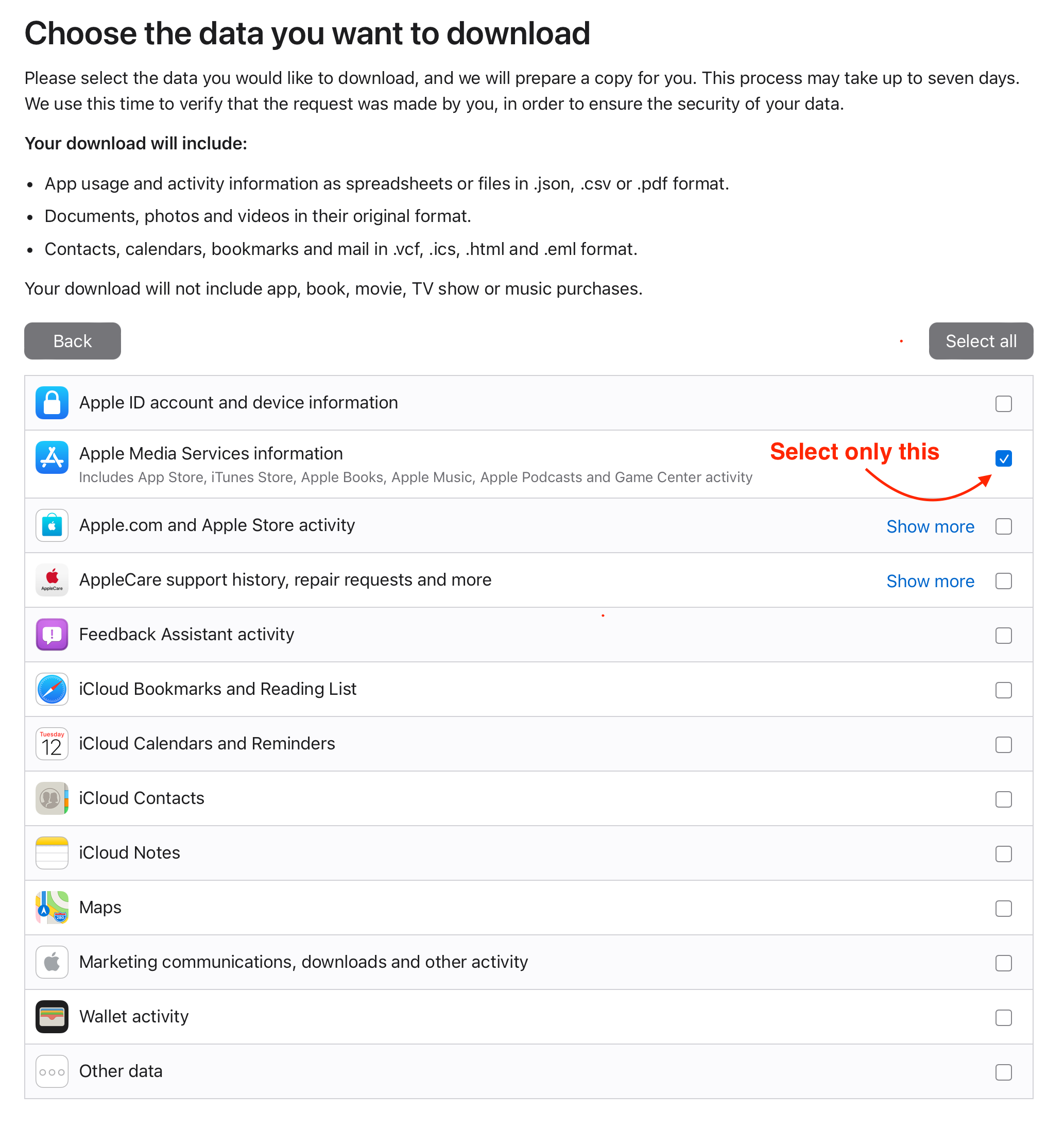
Then click "Continue".
In "Choose a maximum file size" leave everything as it is and click "Complete request".
4. Wait around 7 days for data from Apple
You will receive an email when your data is ready, along with a link to the download page on privacy.apple.com
5. Download received data
It is usually called "Apple Media Services information.zip". Don't unzip it, we require the *.zip format.
6. Upload ZIP file in your account settings
Go to Settings > Apple Music > Import History, here, you can upload the file received from Apple Music.
Wait for a couple of minutes, our systems will save your streams and process them.
Will importing duplicate my history?
No. The file is not added on top of the plays Musicat already has. Up to the last play in the file, your Apple Music history is taken from the file and replaces what was there before:
- Plays Musicat already tracked that are also in the file are counted once, not twice.
- Plays after the last one in the file stay exactly as Musicat tracked them.
- Uploading the same file again, or a newer export later on, does not double anything. The latest upload simply takes over again.
- An Apple Music import never touches your Spotify plays.
Apple's file only records the day and hour of each play, not the minute. For the period the file covers, your plays sit in the right hour, but not at the exact minute.
Because the file takes over, your history up to its last play holds only what is in the file. Upload the file as Apple sent it, or the play history file zipped as described in Handling large files — never an edited copy.
While the import is being processed, the import page shows how many of your streams are still left. Until it finishes, some of your earlier plays can be missing from your stats. They come back as processing goes on.
Handling large files
Sometimes Apple Music (unlike Spotify) includes extra data in the file you request, which can make it too large to upload.
If that happens, please locate the file named "Apple Music - Play History Daily Tracks.csv" - it's usually found inside your Apple Media Services Information.zip > Apple_Media_Services.zip > Apple Music Activity folder.
Once you find it:
- Zip the file.
- Upload it directly to Musicat.
Alternatively, if you'd like our help, you can send the file to us by email. If it's too large to attach, feel free to share it through Google Drive, Dropbox, or WeTransfer instead.